
Swipe left and your news is there
On a Pixel, the Google Discover feed sits to the left of the home screen. One swipe and you're reading your news. Phones running Chinese firmware don't have that page. You can't swap the launcher, and the manufacturer's own assistant page takes the spot on the left.
A free app called "Discover Swipe" brings the feed back. You don't need root or a new launcher. In a short video, CmallRo sets it up on an Honor Magic9 Pro Max running Chinese firmware.
How the app works
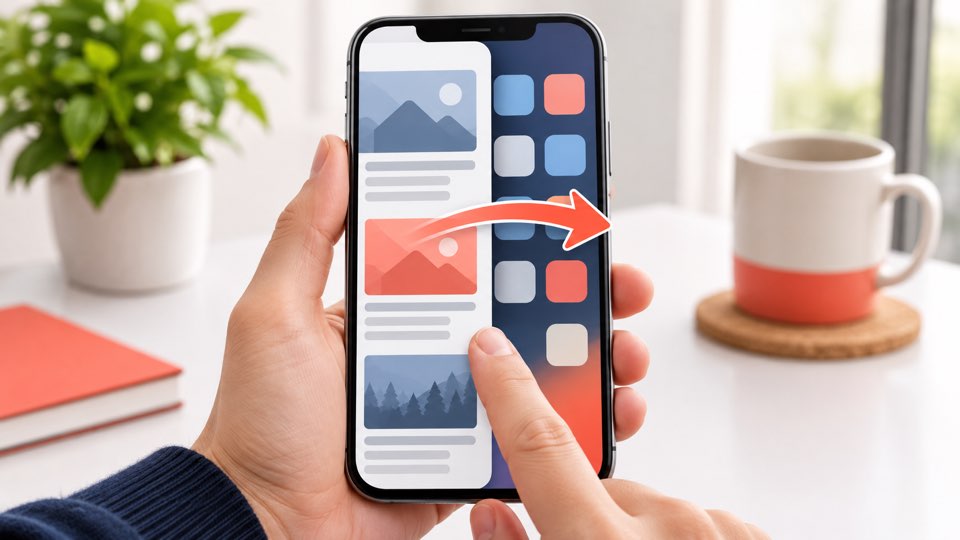
Discover Swipe doesn't replace any part of the system. You add an empty page at the far left of your home screen and place the app's widget on it. When you swipe to that page, the app opens the feed from the Google app. Back or the home gesture returns you to your main screen.
To notice the leftmost page, the app needs accessibility access. The developer puts setup at about two minutes. A checklist in the app shows which items are still open.
The video has no voice-over. It shows every tap on screen, from the download to the first swipe into the feed.
Many thanks to CmallRo for this guide. The video shows exactly where Honor hides the switches you need and what the feed looks like at the end.
1. DOWNLOAD AND INSTALL THE APP
Discover Swipe isn't on the Play Store. You download the APK file from the developer's page, in the video with Chrome. The file is only 75 KB and runs on Android 10 or newer. Android warns about an unknown source during installation. That is normal for apps from outside the Play Store. The page lists checksums you can compare the file against.
The Google app has to be installed, signed in and already showing your Discover feed.
2. PREPARE THE LEFT PAGE
- Turn off the manufacturer's own left page. On Honor that is HonorBoard. The switch is in the home screen settings.
- Pinch the home screen, add a new page and drag it to the far left.
- Open the widgets, pick Discover Swipe and place the "Discover page" widget on the empty page. Stretch it until it fills the page.
3. GRANT THE PERMISSIONS
The checklist in the app takes you to each setting with one tap. A green check mark shows what is done.
- Accessibility: Turn on the "Discover Swipe" service.
- Display over other apps: Allow it. If the switch is grayed out, open App info and lift the restriction first. In the video, a tap on the red "Remove restriction" notice does it.
- Battery: Remove the battery limits. On Honor, set App launch to manual and turn on all three options.
4. LOCK THE APP AND TRY IT
Open recent apps and lock the Discover Swipe card with the padlock. The app then keeps running after "Clear all". Don't swipe the card away by hand. The phone would switch off the accessibility service, and you'd have to turn it on again.
Once the app says "Everything is set", swipe to the leftmost page. The feed opens by itself.
5. EXTRAS IN THE APP
The app is free. In the free version the feed opens after a short pause. Leave a tip in the app and you unlock the full version. The developer relies on your honesty here.
- Speed: You can set the wait before opening to 0 ms.
- Refresh: A round button over the feed loads new stories.
- Handles: A slim handle on the edge or a bar at the bottom takes you back to the home screen. Size, position and opacity are adjustable.
GOOD TO KNOW
Discover Swipe isn't a Google feature. It's an app by an independent developer. Accessibility access is a far-reaching permission. The developer says the app only reads the home screen and the Google app and has no internet permission, so it couldn't send any data. We haven't checked that ourselves. The app is new, and the developer's page lists version 1.0.0.
According to the developer, the app runs on phones that allow an empty page at the far left. It has been tested on several models, but there is no guarantee for every device.
If your phone doesn't have Google services yet, our Google Play Store tutorial walks you through it. For more Honor settings, see Globalize Honor MagicOS 11.