
Circle, translate, search: no root needed
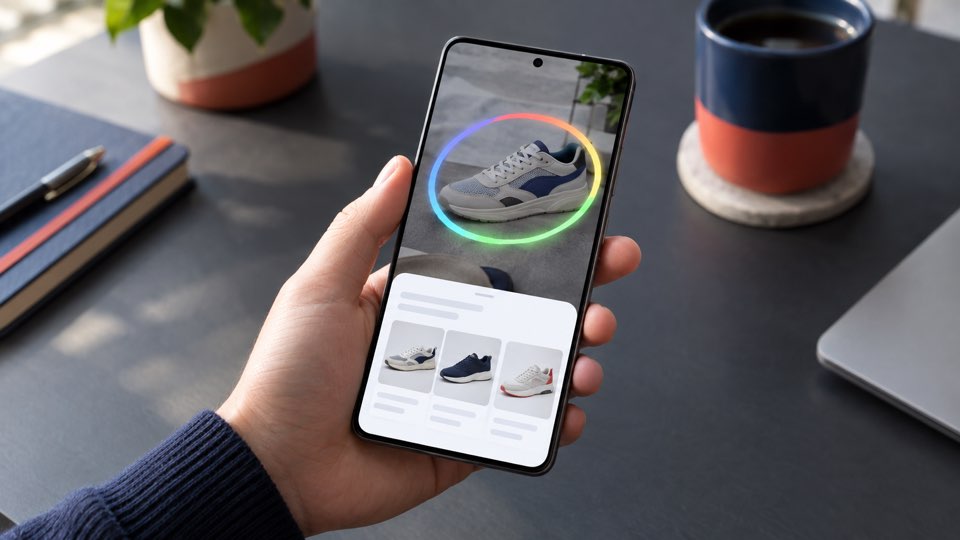
On Pixel and Samsung phones, Circle to Search has become second nature. You draw a circle around something on screen and Google looks it up straight away. Phones running Chinese firmware don't get the feature, whether they come from Honor, Oppo, OnePlus, Vivo or Xiaomi.
A free app called "Circle To Search - AI Select" brings it to your phone, and you don't need root. In a short video, Casual Reviews shows how to set it up in a few minutes. You even get a few extras that Google only switches on for selected devices.
Why it used to be such a hassle
Google only rolls out Circle to Search to devices it has picked, mostly Pixel and Samsung models. Getting it on a Chinese phone used to mean tweaking several Google services one by one, the Google app and Gemini among them. On Honor's MagicOS, even that often didn't work.
The new app takes a different route. When you trigger it, it grabs a screenshot and hands the part you picked over to Google Lens, Google Translate or an AI. That's why it works whether or not Google has enabled your device.
In the video, Casual Reviews sets the app up step by step on an Honor and an Oppo phone, then tries every feature on a Chinese app.
Many thanks to Casual Reviews for this guide. The video shows exactly where Honor and Oppo hide each switch, which saves a lot of digging through settings menus.
1. INSTALL THE APP
Search the Play Store for "Circle To Search - AI Select" by CircleAI Corp and install it. In the video it was still called "Circle to Search AI Helper". Several apps have similar names, so check the developer before you install.
2. SET IT UP
- Open the app, accept the terms and grant it accessibility access. That's what lets the app capture your screen when you use the gesture.
- Exclude the app from battery optimization so it stays ready in the background.
- Choose how you want to start a search. The video uses a double tap on the navigation bar at the bottom of the screen. You can also use a floating button or a swipe gesture.
3. KEEP IT RUNNING IN THE BACKGROUND
For the gesture to still work hours later, the app has to be allowed to keep running in the background. You used to need this for several Google apps. Now it's just this one.
- Honor (MagicOS): In App info, turn off "Manage unused apps". Then go to Settings > Apps > App launch, find the app, switch off automatic management and turn on all three options.
- Oppo (ColorOS): In App info, open "Battery usage" and allow background activity.
- Other brands: The menus have slightly different names. What you're looking for is autostart and background activity with no battery restrictions.
4. WHAT THE APP CAN DO
- Translate: One tap translates the whole screen with Google Translate. Set your target language in the app's settings and leave the source language on "Auto".
- Scrolling translation: The app keeps translating as you scroll and use your phone as normal.
- Circle and search: Whatever you circle goes to Google Lens. You can also have Google search the whole screen.
- Summarize and explain: The app sums up the selected area or explains what's in it.
- Ask AI: "Ask AI anything" lets you ask about what's on screen by typing or speaking. Which AI is behind it isn't clear, even in the video.
- Music recognition: Google identifies the song that's playing, or a tune you hum. Google needs microphone access for this.
GOOD TO KNOW
This isn't an official Google feature. It's a third-party tool. For every search it takes a screenshot and sends the selected part to Google or to the AI. The developer says it uses accessibility access only for that screenshot. Still, think twice before using the gesture in banking apps or private chats.
You'll need a working Google Play Store. If your phone doesn't have one yet, our Google Play Store tutorial walks you through it.